Want to choose what visitors see in the menu on your Serey platform? This short video shows you how to set up the navigation bar. You can turn items on, change their icons and names, and pick where the menu appears.
Follow these steps:
- Go to the home page of your own platform. Click your name in the top right and choose Manage Your Platform.
- Scroll to Manage Navigation Bar. You will see the Desktop and Mobile tabs, plus the Reorder and Navbar Layout buttons. At first, only Home page is set to ON.
- Open the HIDDEN section. Turn on the items you want to make public, for example Blog, Gallery and Video. Other items you can turn on include Serey Link, Online Shop, Podcast and Chat. Each time you turn one on, you will see a message such as Success: ... shown in the menu.
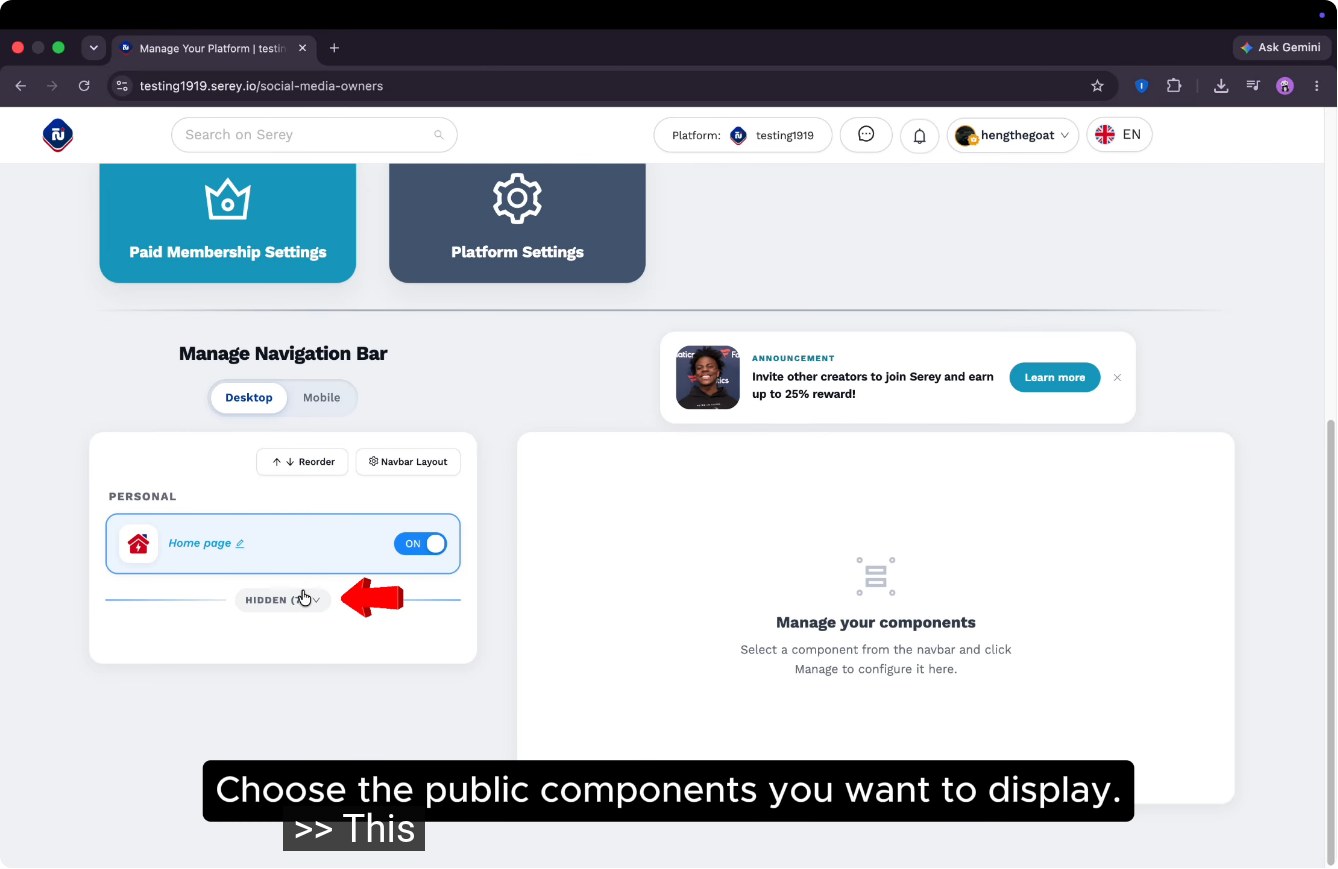 Image: Serey
- Want to change an icon or a name? Click an item. The Menu Form window opens. Under ICON, you can choose Upload Image or Icon Lists. In Icon Lists you will find themes such as Serey theme and Gray theme, plus Green theme, Orange theme and Other. You can also change the item's name. Then click Save.
- Click Navbar Layout. Choose Vertical (Side) for a menu on the side, or Horizontal (Bottom) for a menu along the bottom.
- Go back to your community's home page. You will see your navigation bar. In the video, it shows Home page, Blog, Gallery and Video.
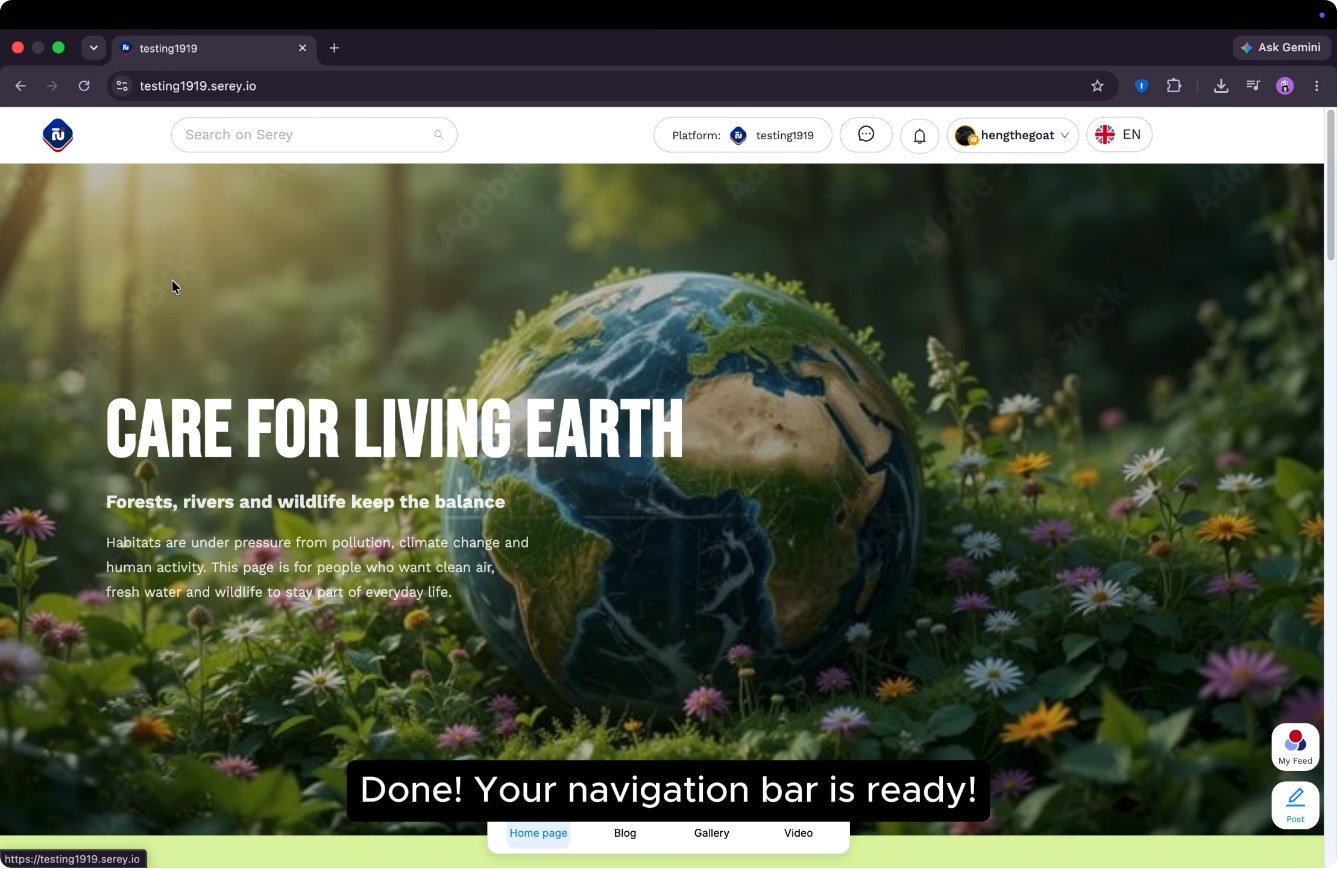 Image: Serey
That's it! Your navigation bar is ready to use. Serey is an all-in-one publishing platform: your blog, videos, podcast and shop all live in one place. If you earn money from paid memberships, Serey takes a 0% fee.
Which items will you put in your platform's menu? Let us know in the comments!

 0.00 SRY